I travel quite a bit, as much as 1-2 times per week albeit primarily regional travel.
As such though I spend more time in airports than I would prefer and am always looking for opportunities to minimize time in line ups, minimize baggage and minimize any other aggravation.
Many of you road warriors probably use electronic boarding passes. I used to, but then didn’t as I was frustrated with my phone’s (iPhone at the time, but others too) constantly changing orientation depending on how you (or the security agent, boarding gate agent, etc.) were holding the phone.
But I tried something new that worked pretty well: essentially I was able to (on my Windows Phone) isolate the QR Code portion of my electronic boarding pass and pin it to my home screen. This way I can simply hand my phone to the agent, they scan and I go (although I’ve been stopped a few times by agents with, “what KIND of phone is that!? That’s cool!” as a result of this… which has caused it’s own delays!).
And this is what it looks like:
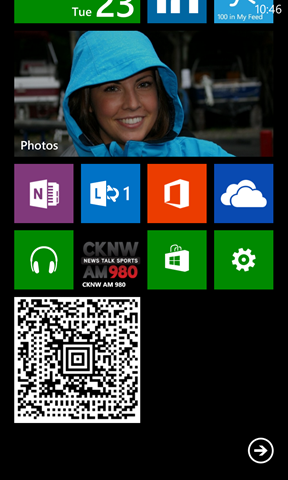
Don’t have a Windows Phone 8? Too bad … you’re out of luck, but if you do, this is how you can do it:
Step 1: Receive your Electronic Boarding Pass
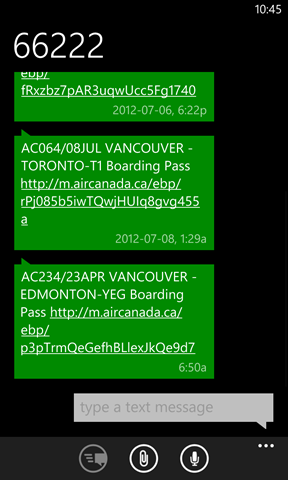

Step 2: Zoom in on the QR Code so that it fills the entire width of your phone’s screen.
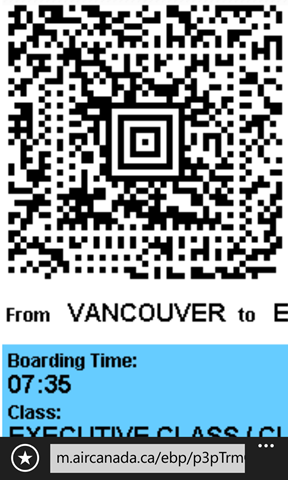
Step 3: Pin the page to your Start Screen

Voila! The agent can easily scan the QR Code, the phone isn’t jumping around between portrait and landscape orientation and you get to show off the phone (and photos of your gorgeous wife).
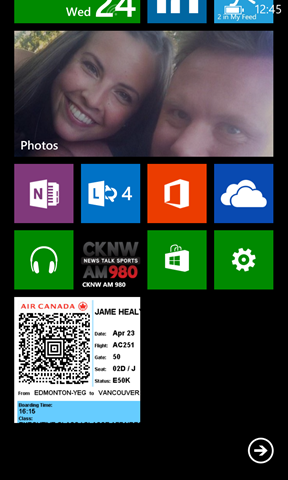
If you need the boarding pass details, simply click/press on the QR Code since it is also a shortcut to the boarding pass.
By the way, if you DON’T zoom in on the QR code in Step 2 you will get the following (which is often too small for them to scan).


 Jame Healy